 Parent Guide
Your child’s school day, on your phone and computer
Your school · powered by Skoolly
On your phone or on any computer
The Skoolly app
Best for every day. Notifications for fees, results and school updates, right on your phone.
The parent portal
No app needed. Open your school’s Skoolly address on a laptop, tablet or phone browser.
Everything about your child, in one place
No more calling the office or waiting for a printed card. Open the app any time and see what is happening today.
The Skoolly app on your phone
Install it, sign in once, and the app remembers you.
Open the app & choose Parent
- 1
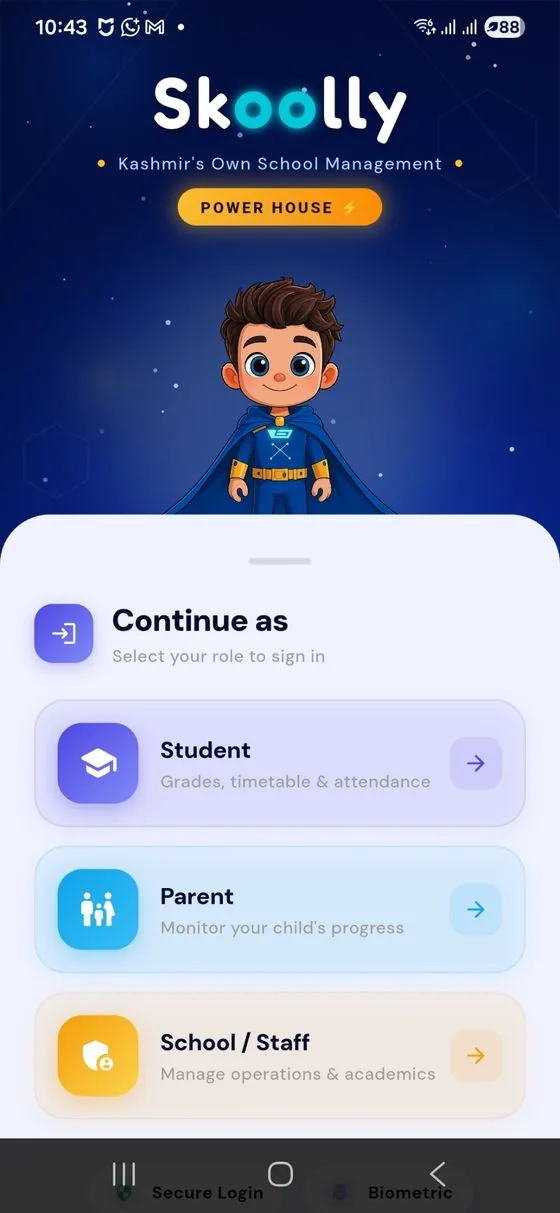
The welcome screen shows three roles: Student, Parent and School / Staff.
- 2
Tap Parent: “Monitor your child’s progress”.
One parent account holds all your children in the school. No separate login for each child.
Sign in
- 1
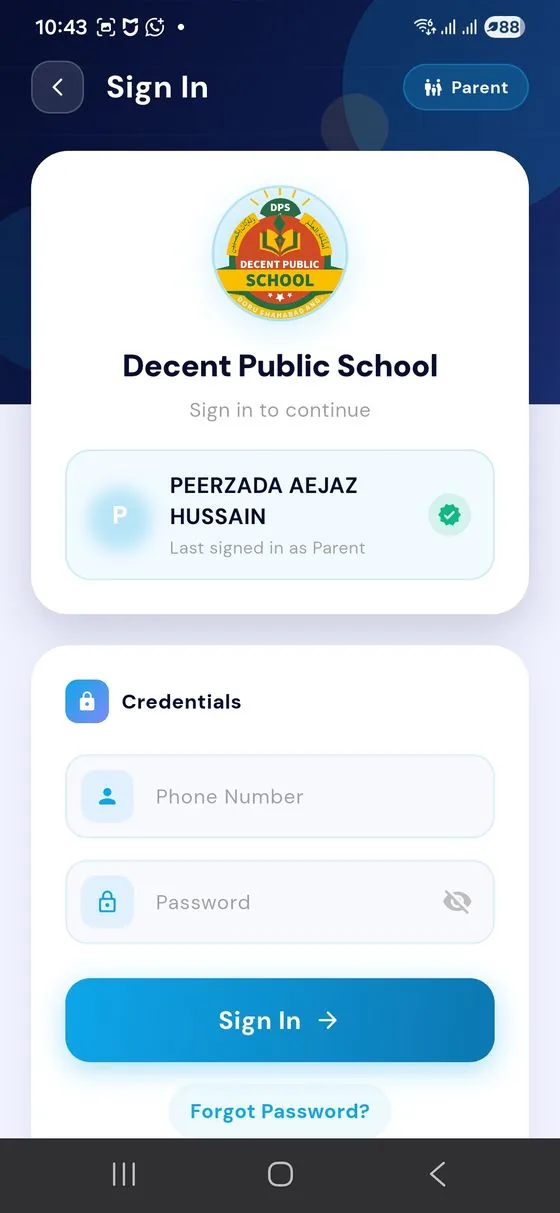
Enter your phone number, the one you gave the school.
- 2
Enter the password from the school. Tap the eye to check it.
- 3
Tap Sign In. Next time the app remembers you.
No login yet? Ask your class teacher or the school office.
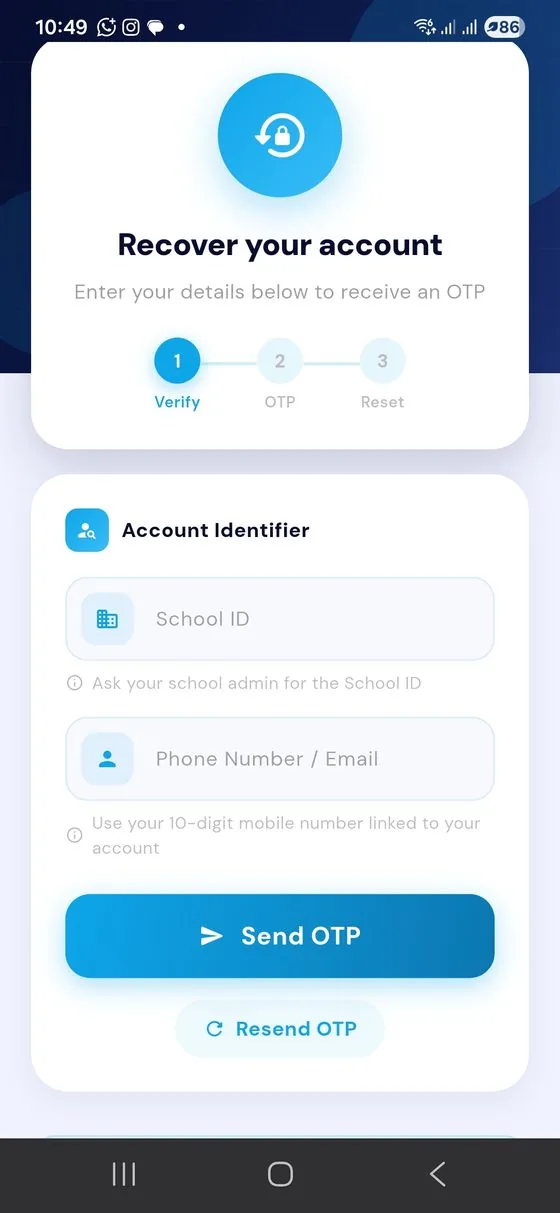
Forgot your password?
- 1
Tap Forgot Password? on the sign-in screen.
- 2
Enter your School ID (ask the office) and your phone number or e-mail.
- 3
Type the OTP you receive, then set a new password.
Your dashboard
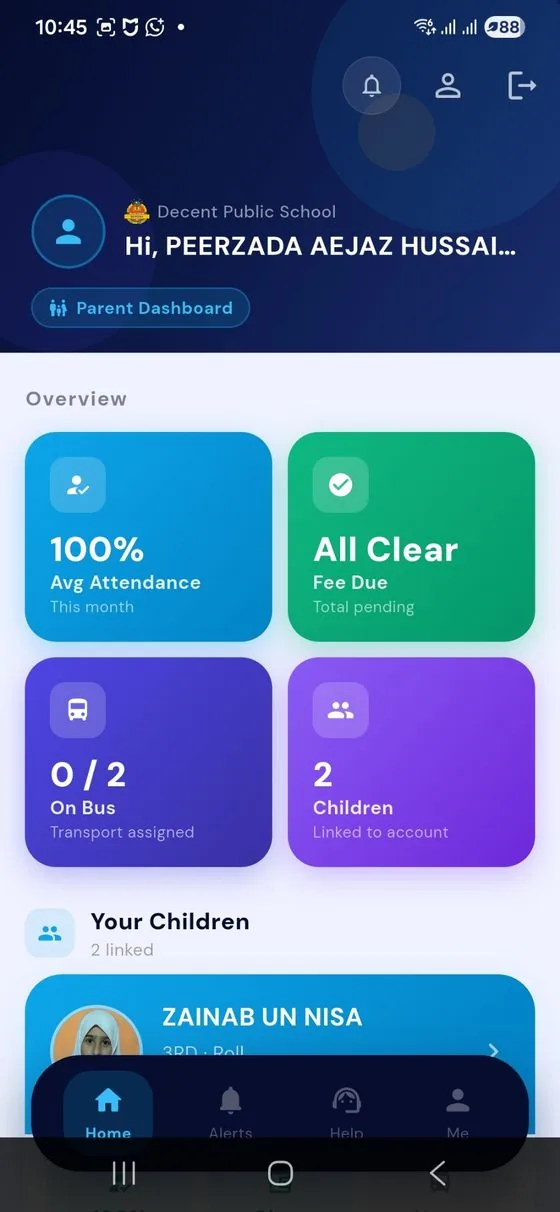
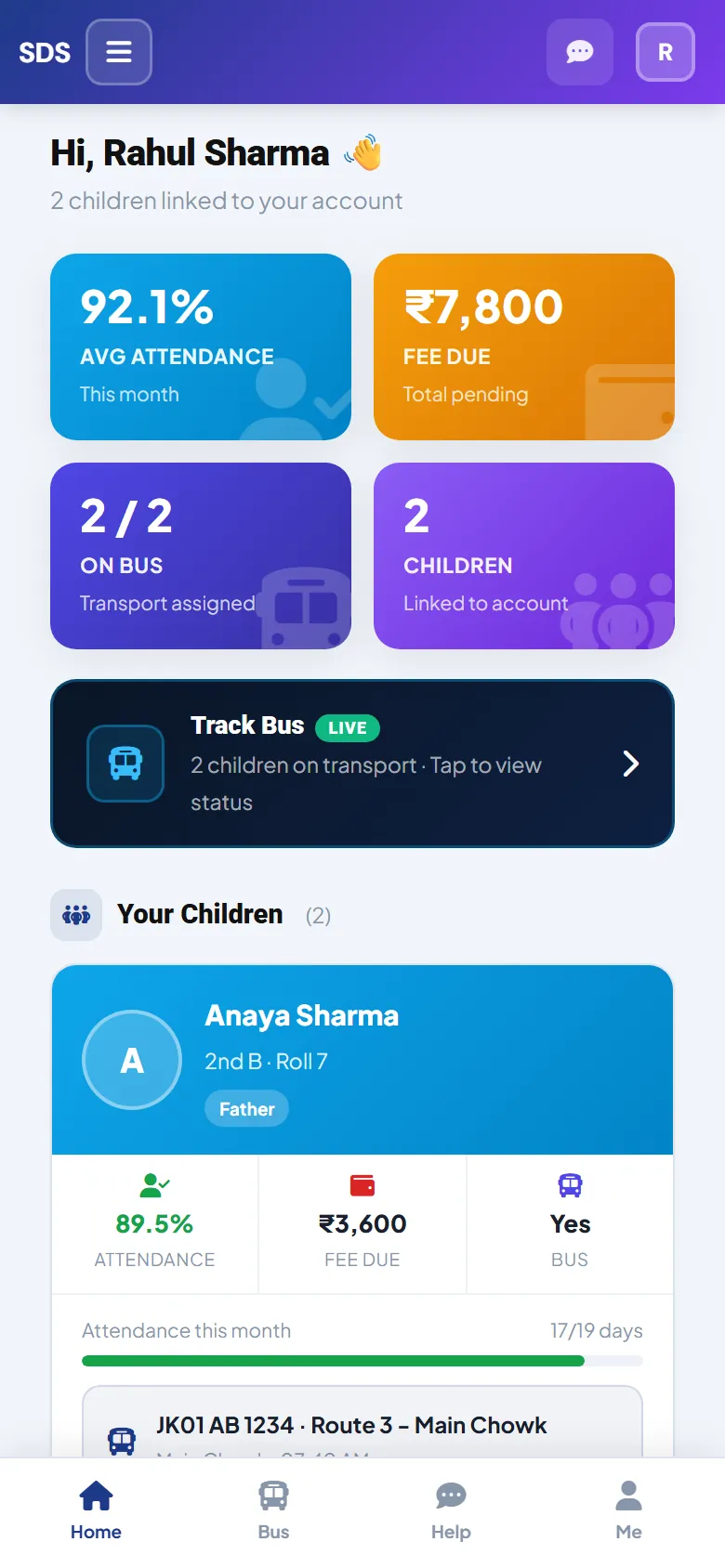
The home screen puts the most important things first.
✅ Attendance
Average for this month.
₹ Fees
Amount due, or “All Clear”.
🚌 On bus
Children with transport.
👨👩👧 Children
Tap a name to open the profile.
Fees & receipts
The tabs across the top: Fee · Att · Diary · Tasks · Results · Bus · Reports. Swipe the row to see them all.
- 1
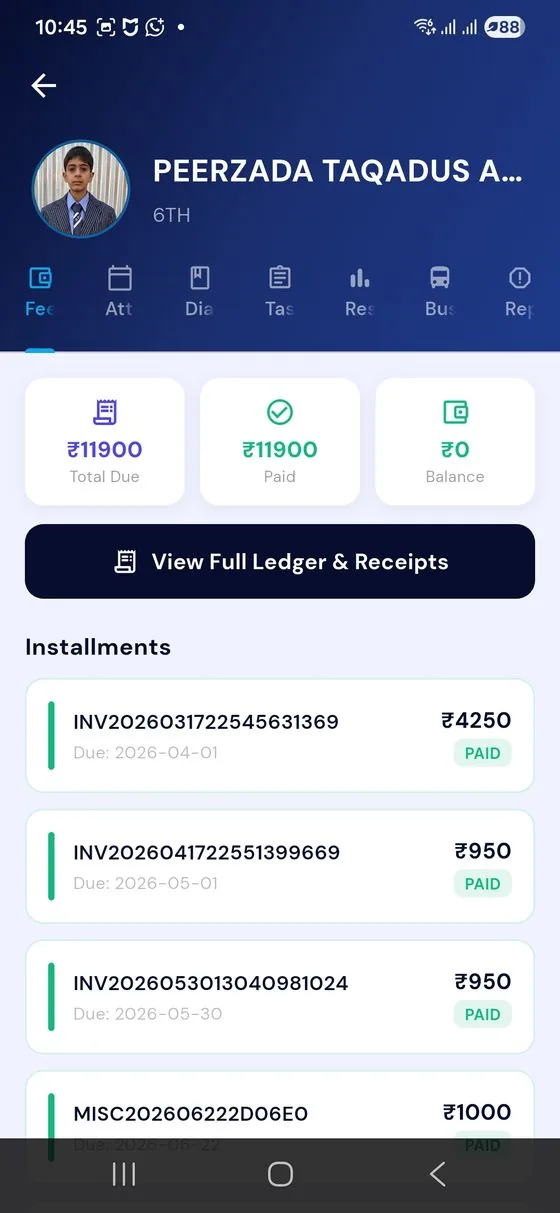
Fee shows Total Due, Paid and Balance.
- 2
Every installment is listed with a PAID badge.
- 3
Tap View Full Ledger & Receipts to download a receipt.
Exam results & grades
- 1
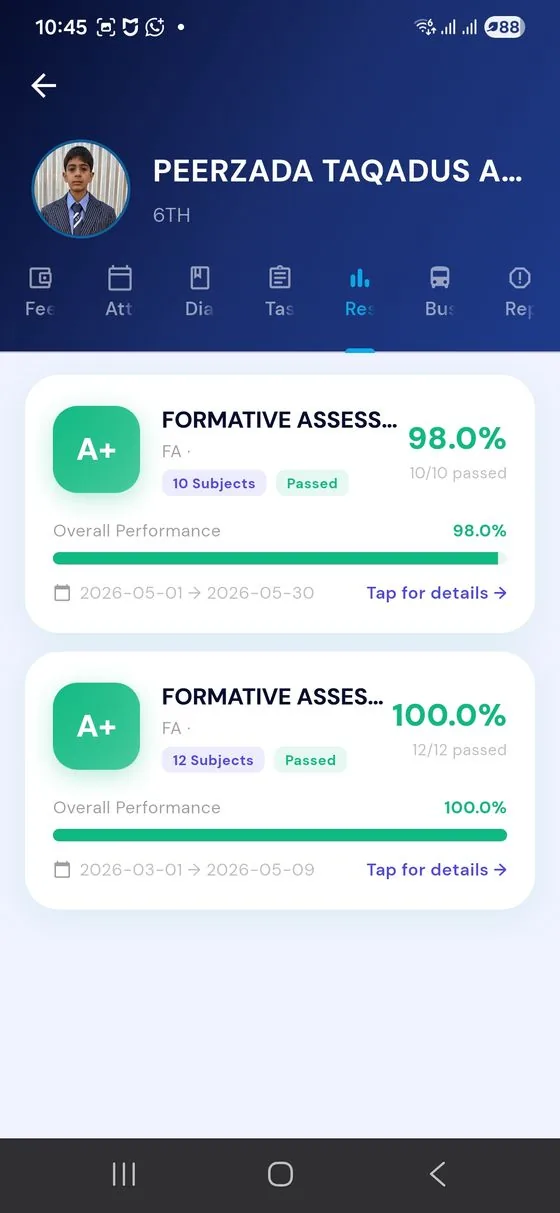
Open the Results tab to see each exam.
- 2
Each card shows the grade, percentage and subjects passed.
- 3
Tap Tap for details for subject-by-subject marks.
Results appear the moment the school publishes them.
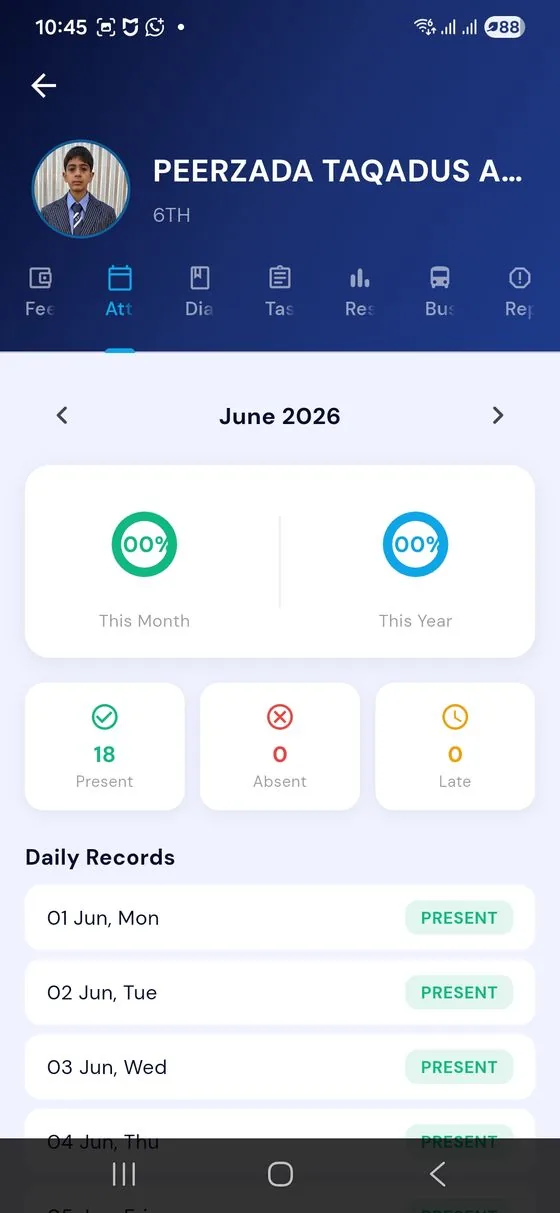
Day-by-day attendance
- 1
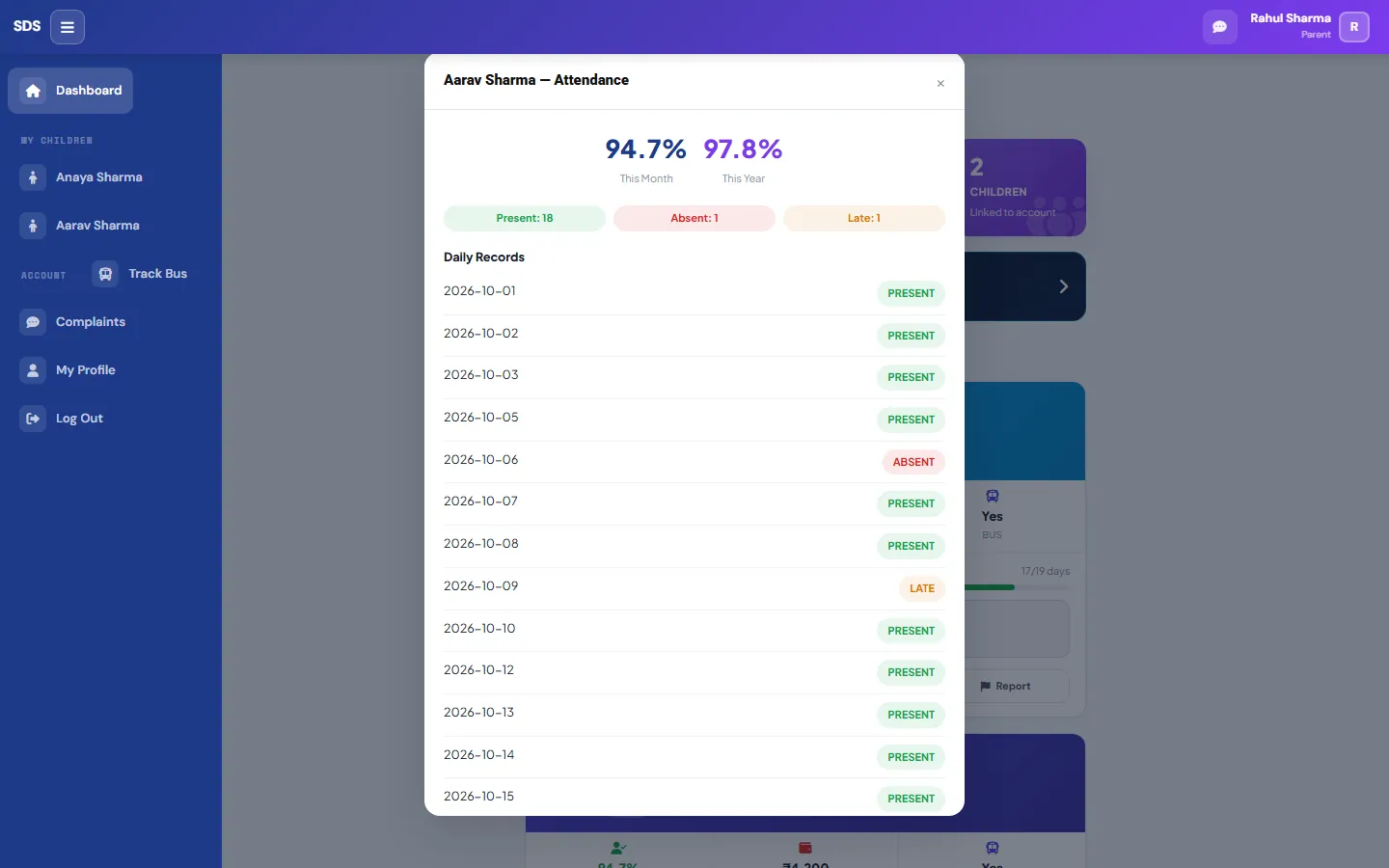
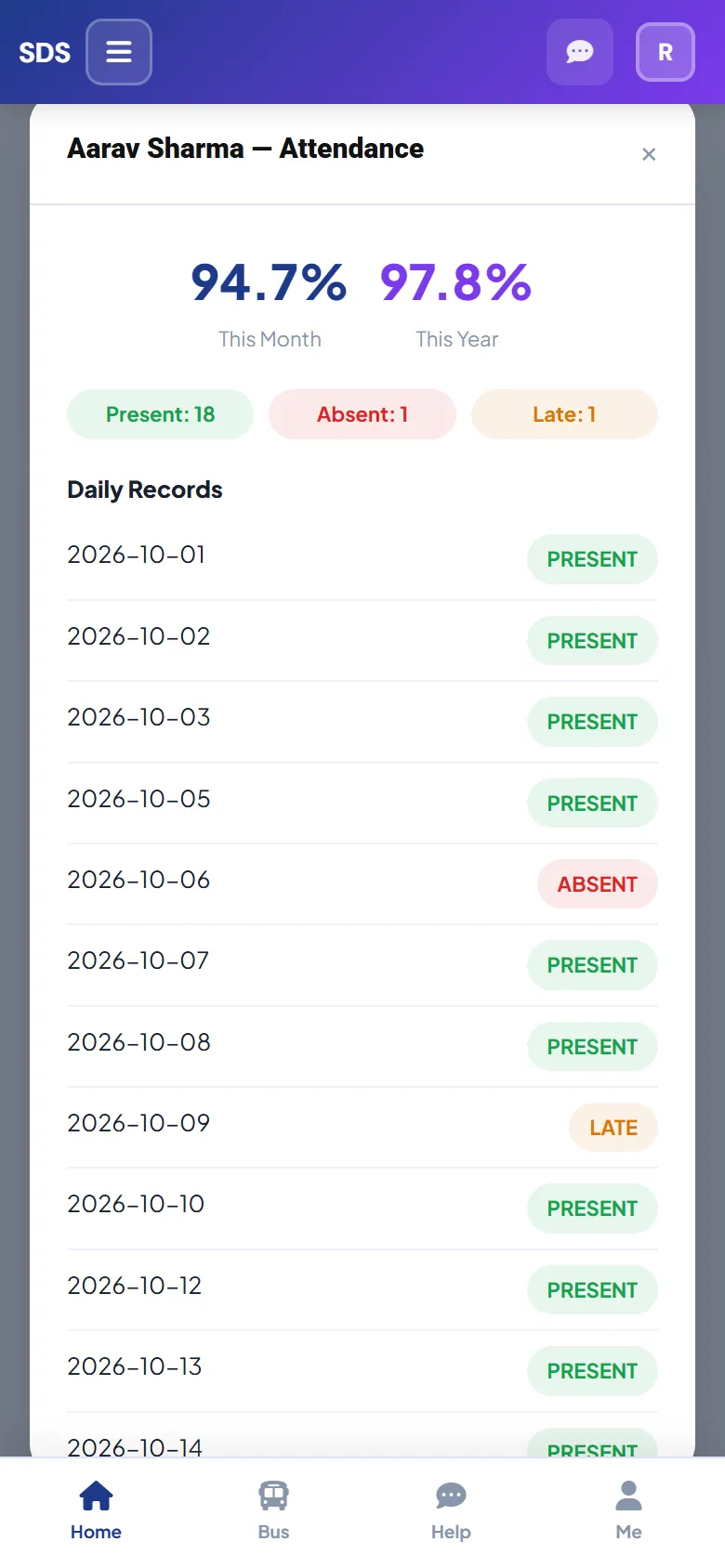
Att shows this month and the whole year.
- 2
Totals for Present, Absent and Late.
- 3
Scroll Daily Records; use ‹ › to change the month.
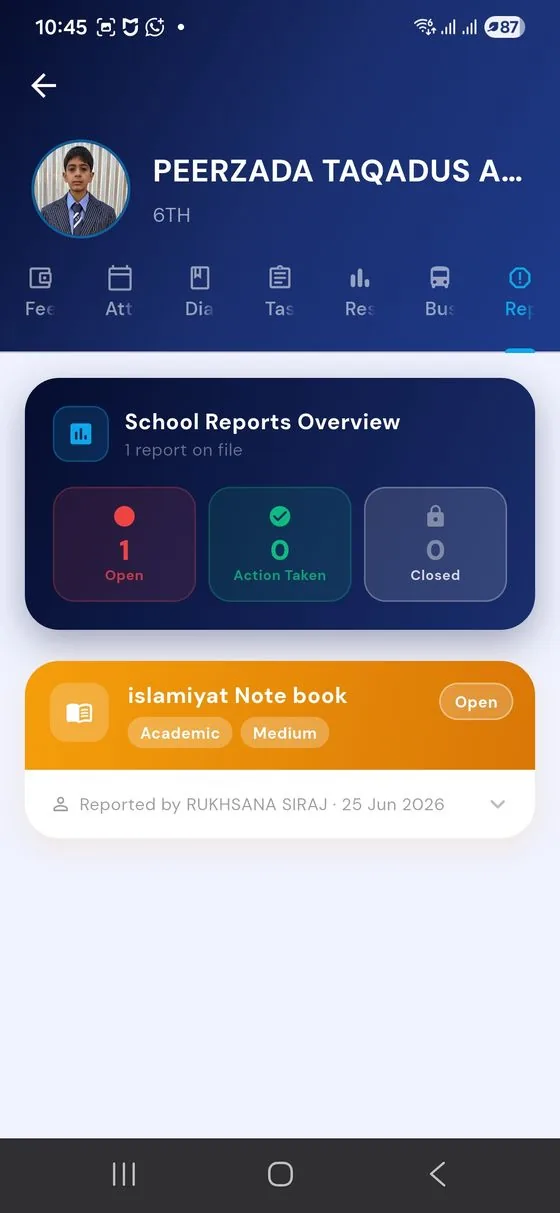
School reports about your child
- 1
Reports shows notes the school has filed about your child.
- 2
Each is marked Open, Action Taken or Closed.
- 3
Tap a report for the details and who raised it.
This is how the school tells you about anything that needs your attention, like a missing notebook.
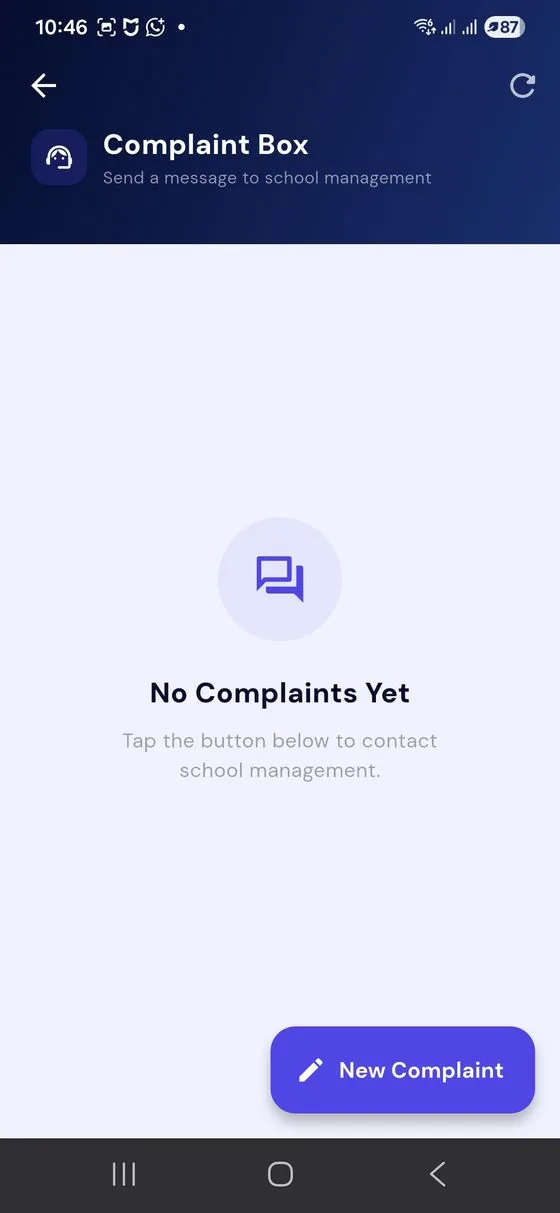
Raise a concern
- 1
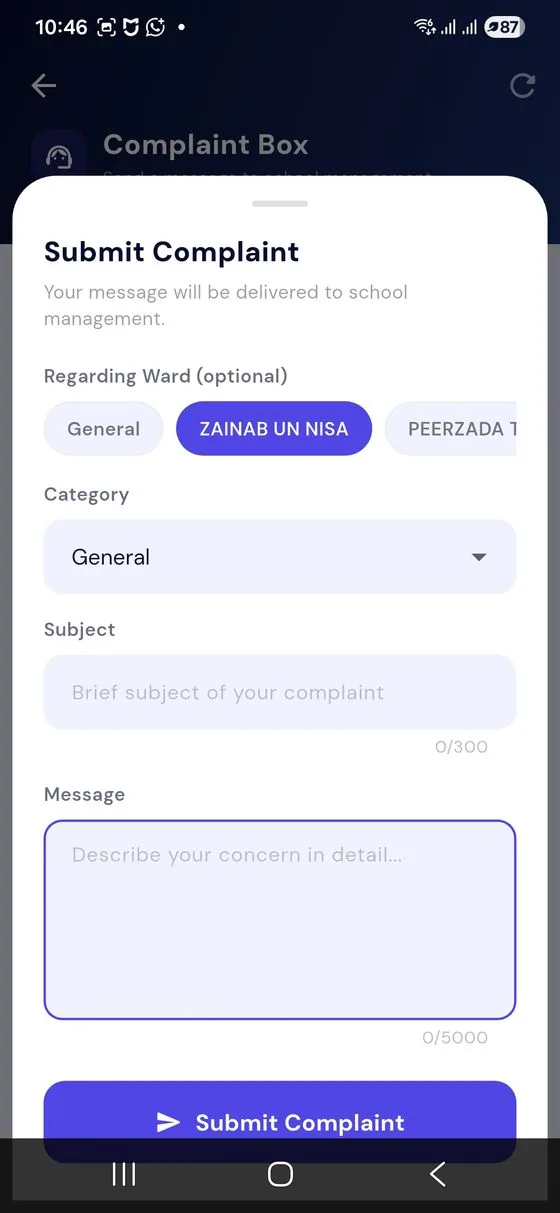
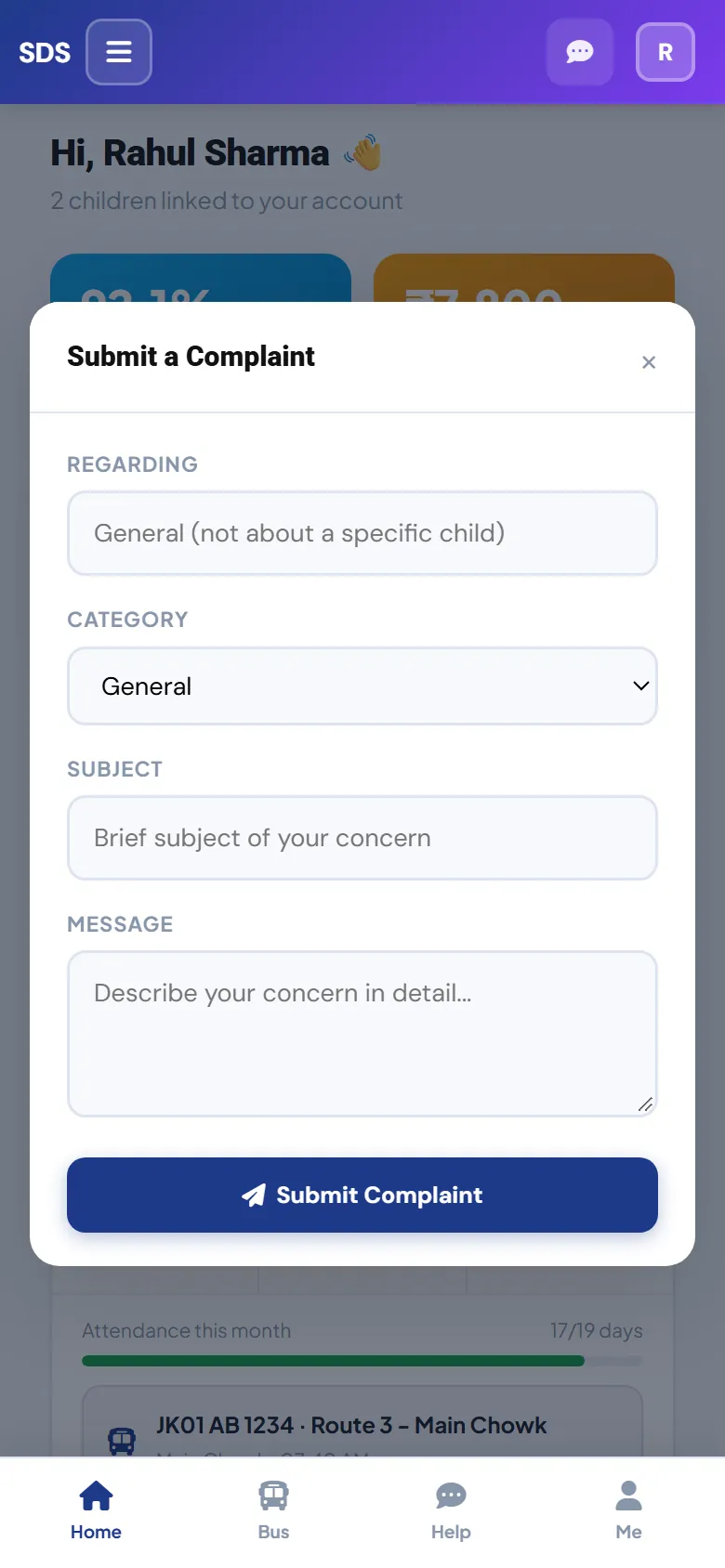
Open Complaint Box from the menu and tap New Complaint.
- 2
Choose the child (or General), a category and a short subject.
- 3
Describe your concern and tap Submit Complaint.
It goes straight to school management, and you can follow its status.
The parent portal, in any browser
- 1
Open your school’s address on a laptop, tablet or phone browser.
- 2
Choose Parent and sign in with the same phone number and password.
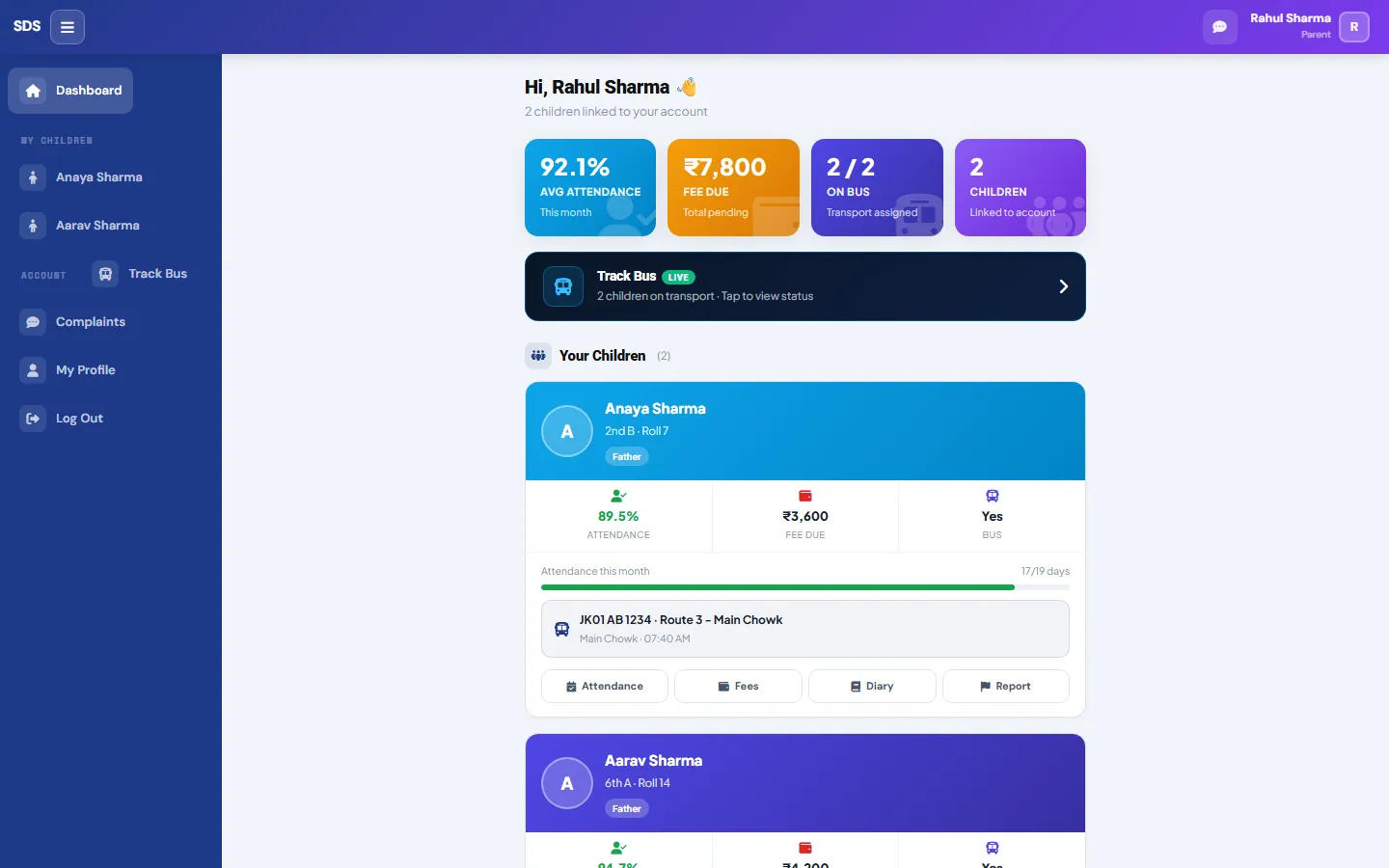
Your dashboard on the big screen
The same summary as the app: attendance, fees due, bus and every child, each with buttons for Attendance, Fees, Diary and Report.
Attendance, day by day
Tap Attendance on a child’s card: this month and this year in percent, totals for present, absent and late, and every school day listed.
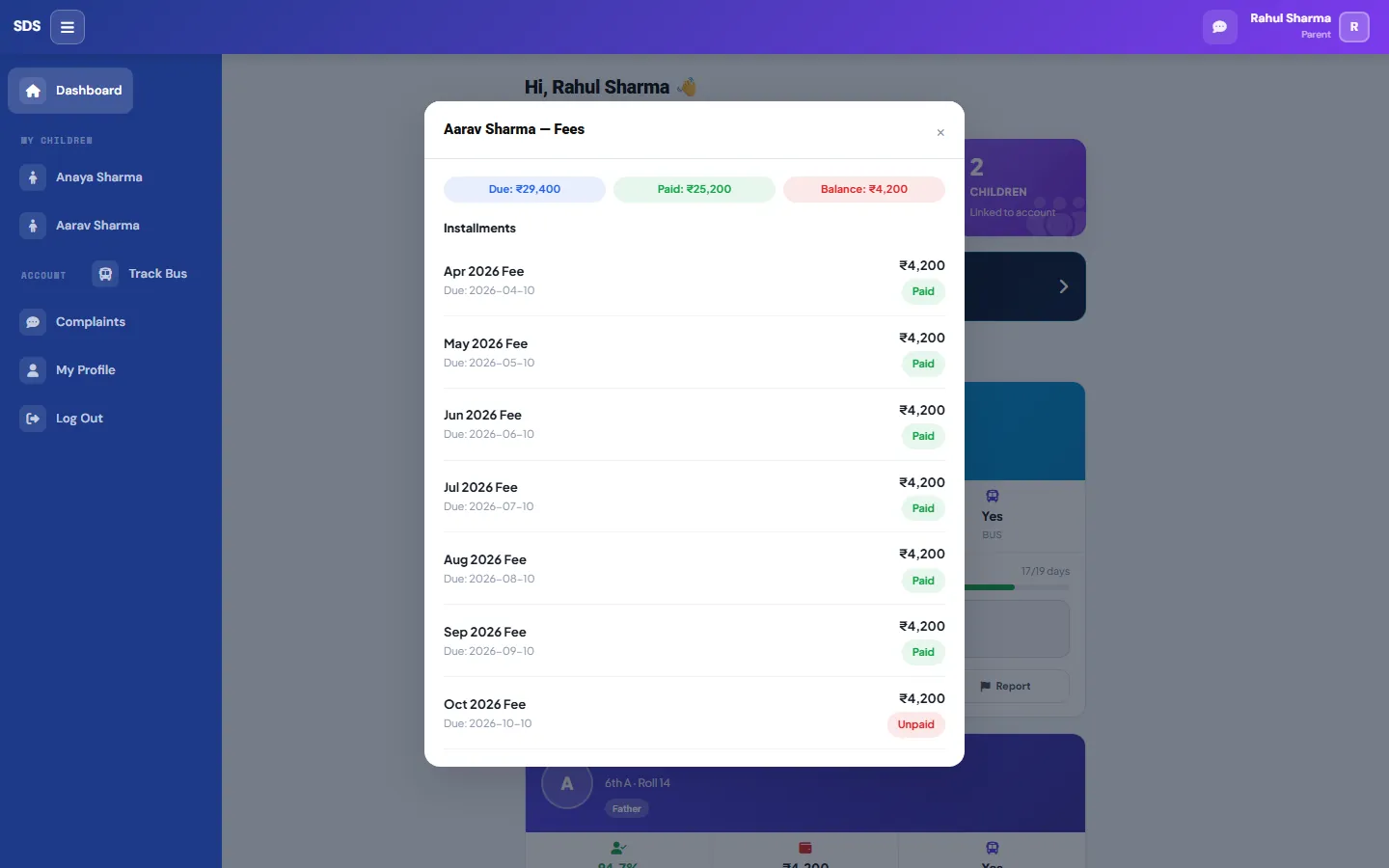
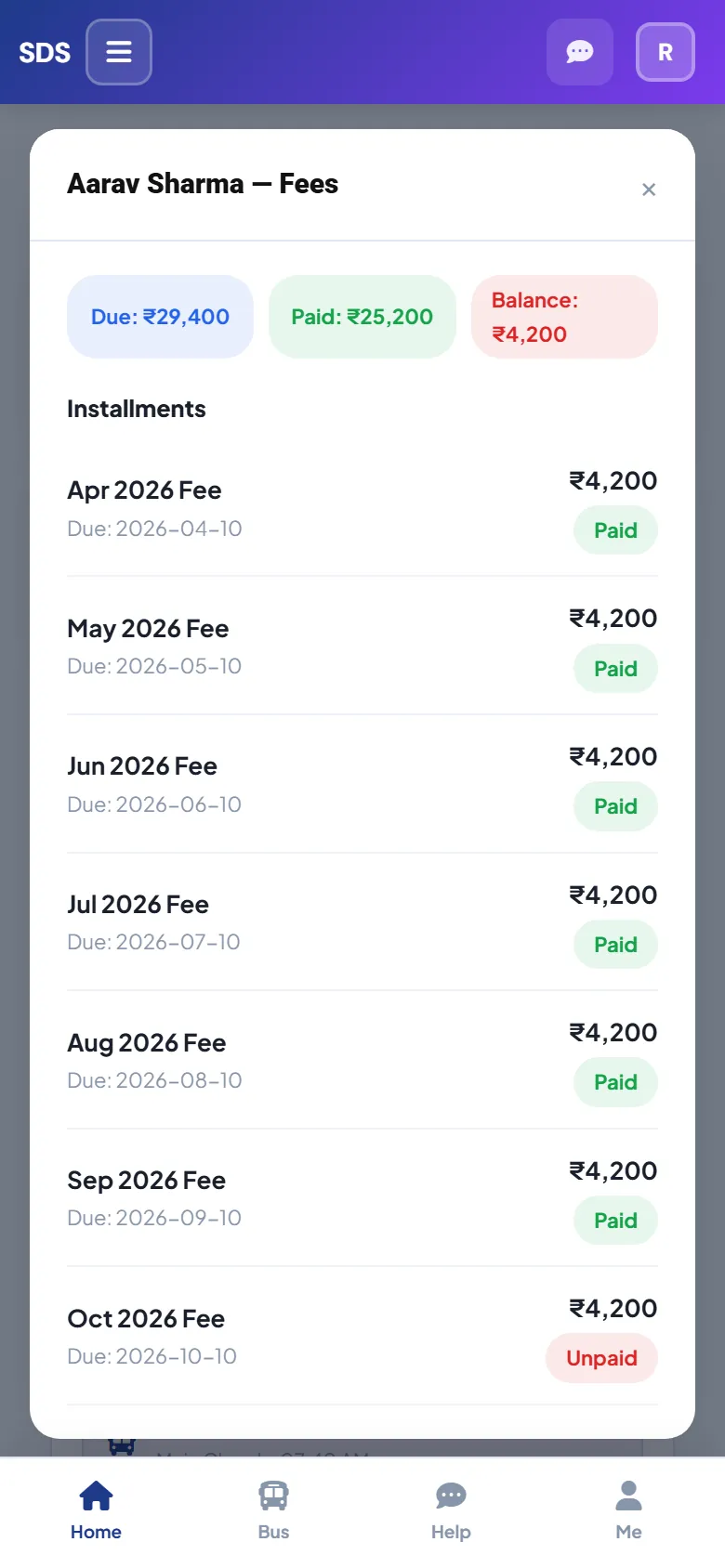
Fees: due, paid & balance
Tap Fees to see every month’s installment, which are Paid and which are still Unpaid, with the totals on top.
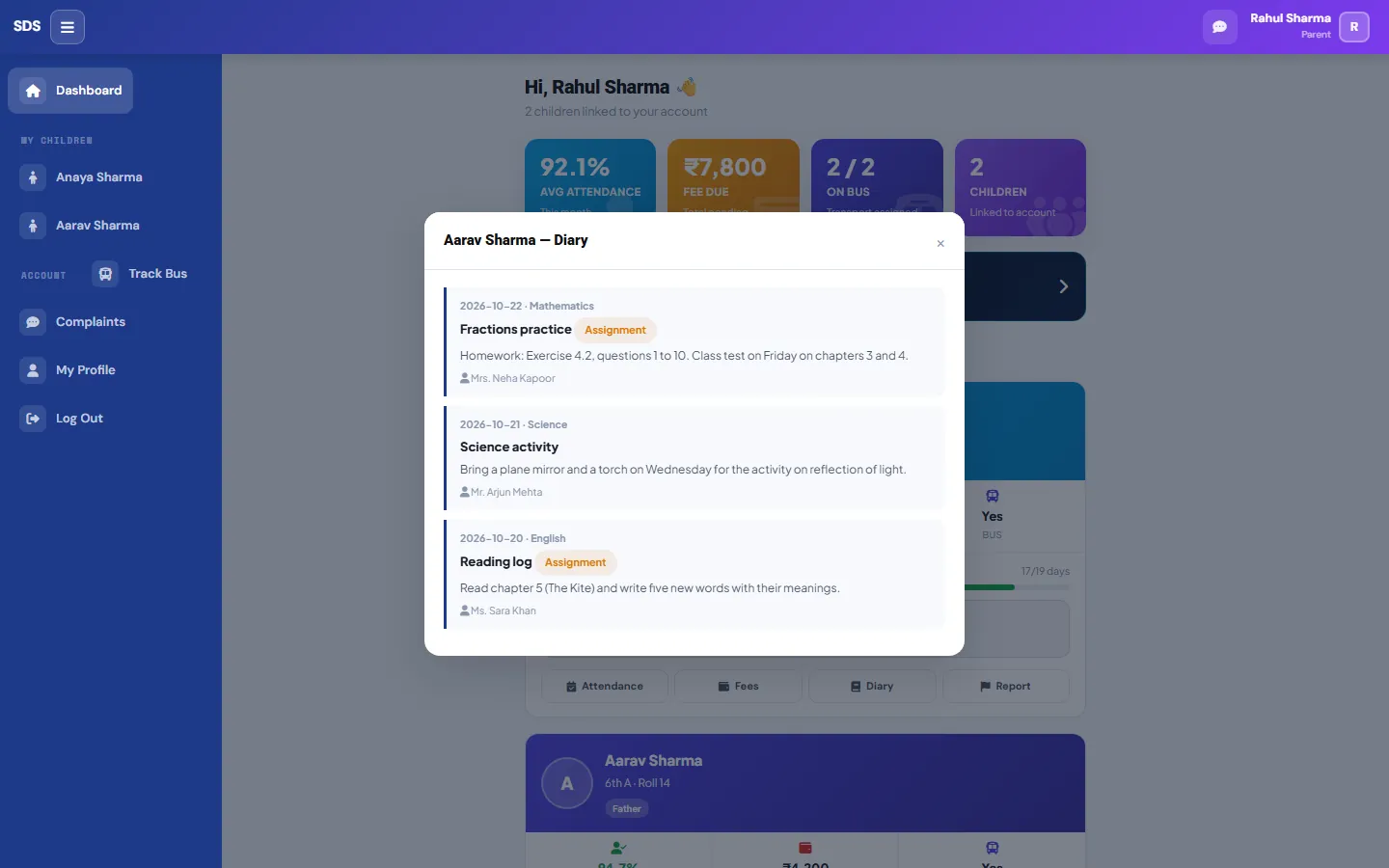
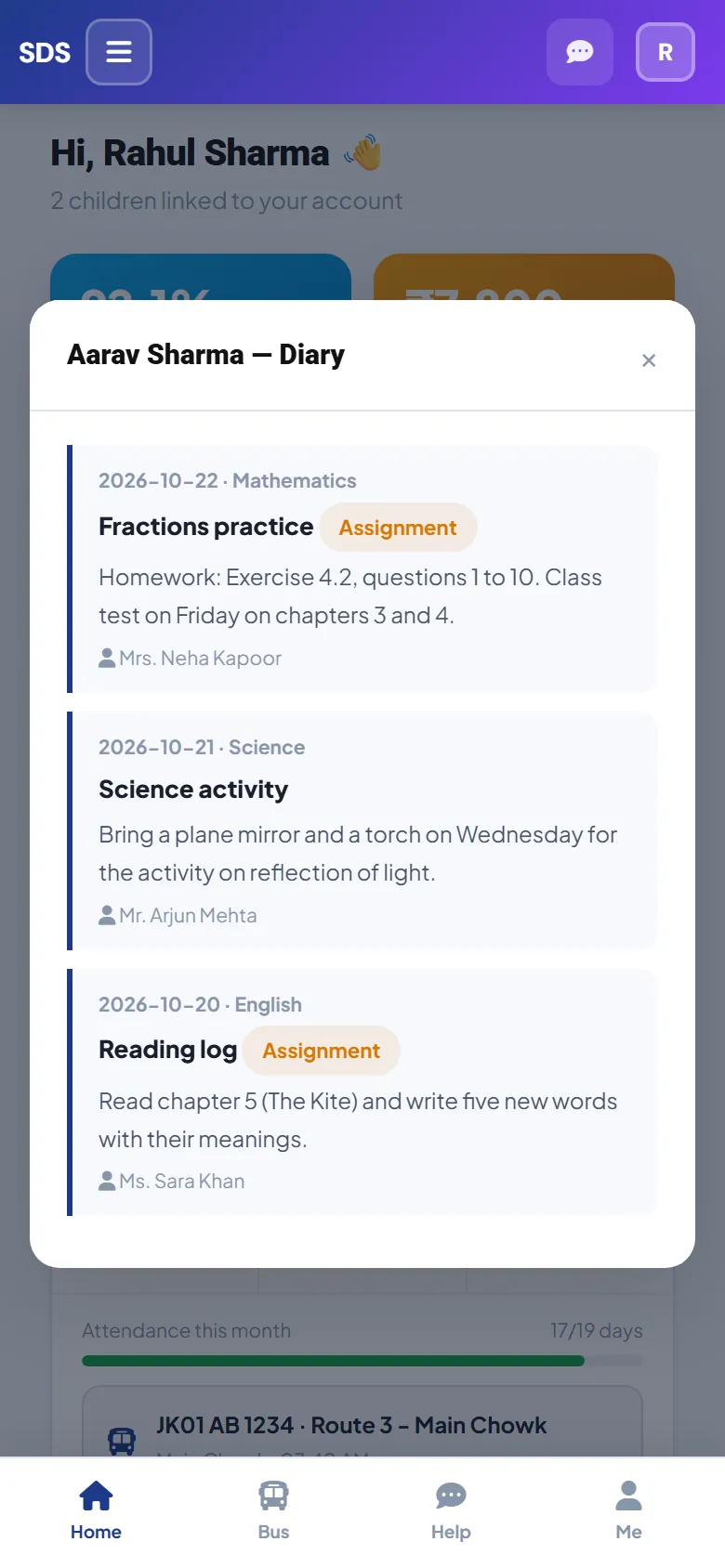
Diary & homework
Tap Diary for what each teacher posted: the subject, the date, the teacher’s name, and an Assignment tag when there is work to hand in.
The school bus
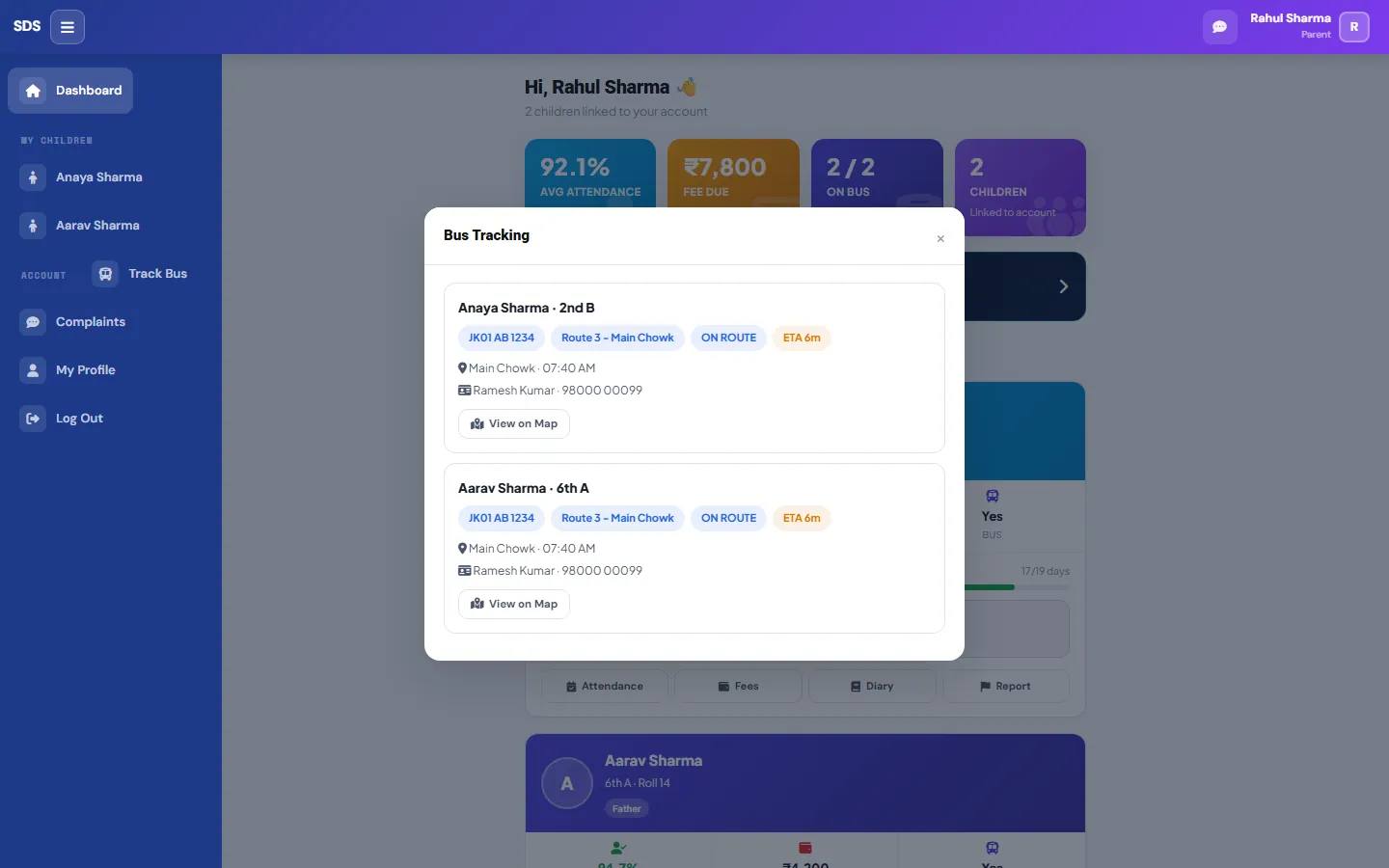
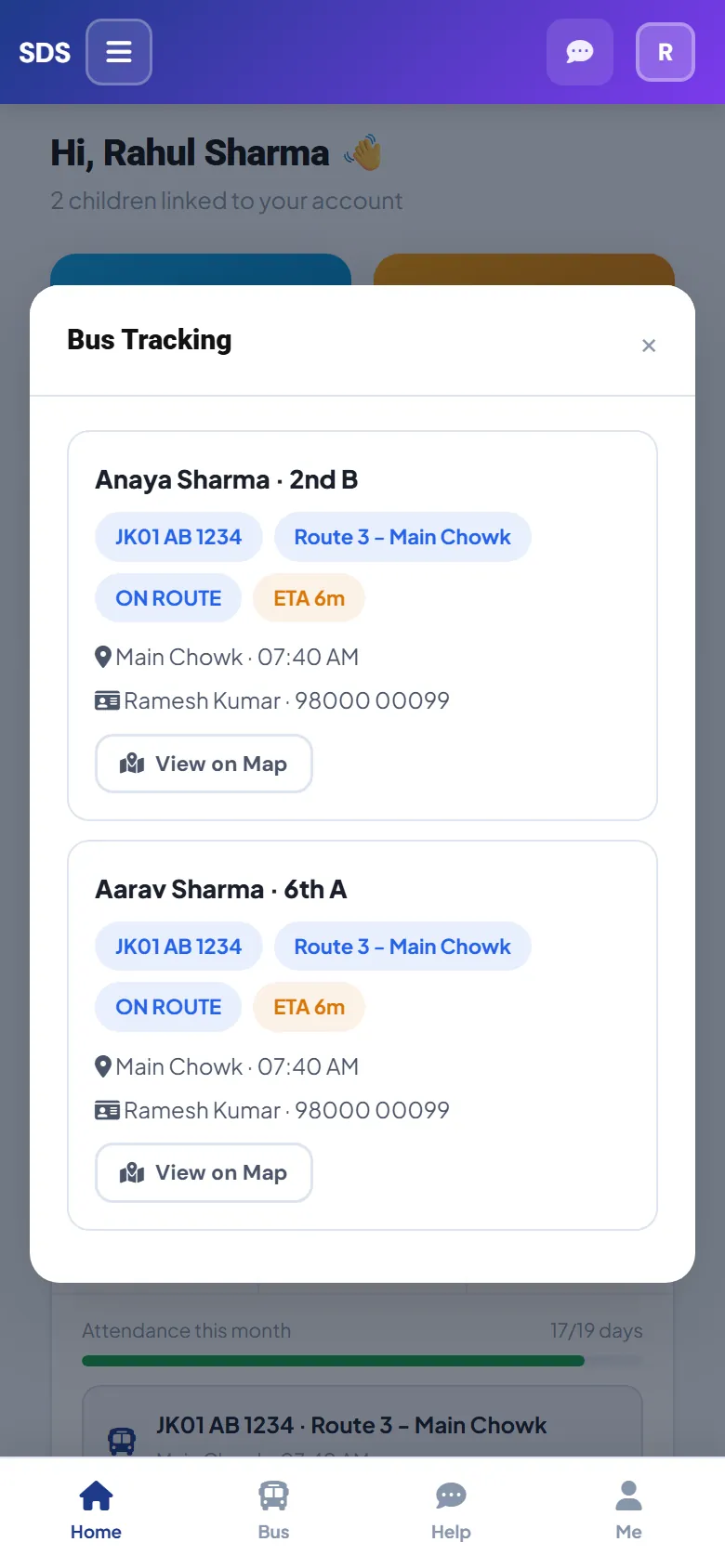
Tap Track Bus: the bus number, route, your stop, pick-up time, the driver’s name and phone, and the bus status. View on Map opens the location.
Concerns & replies
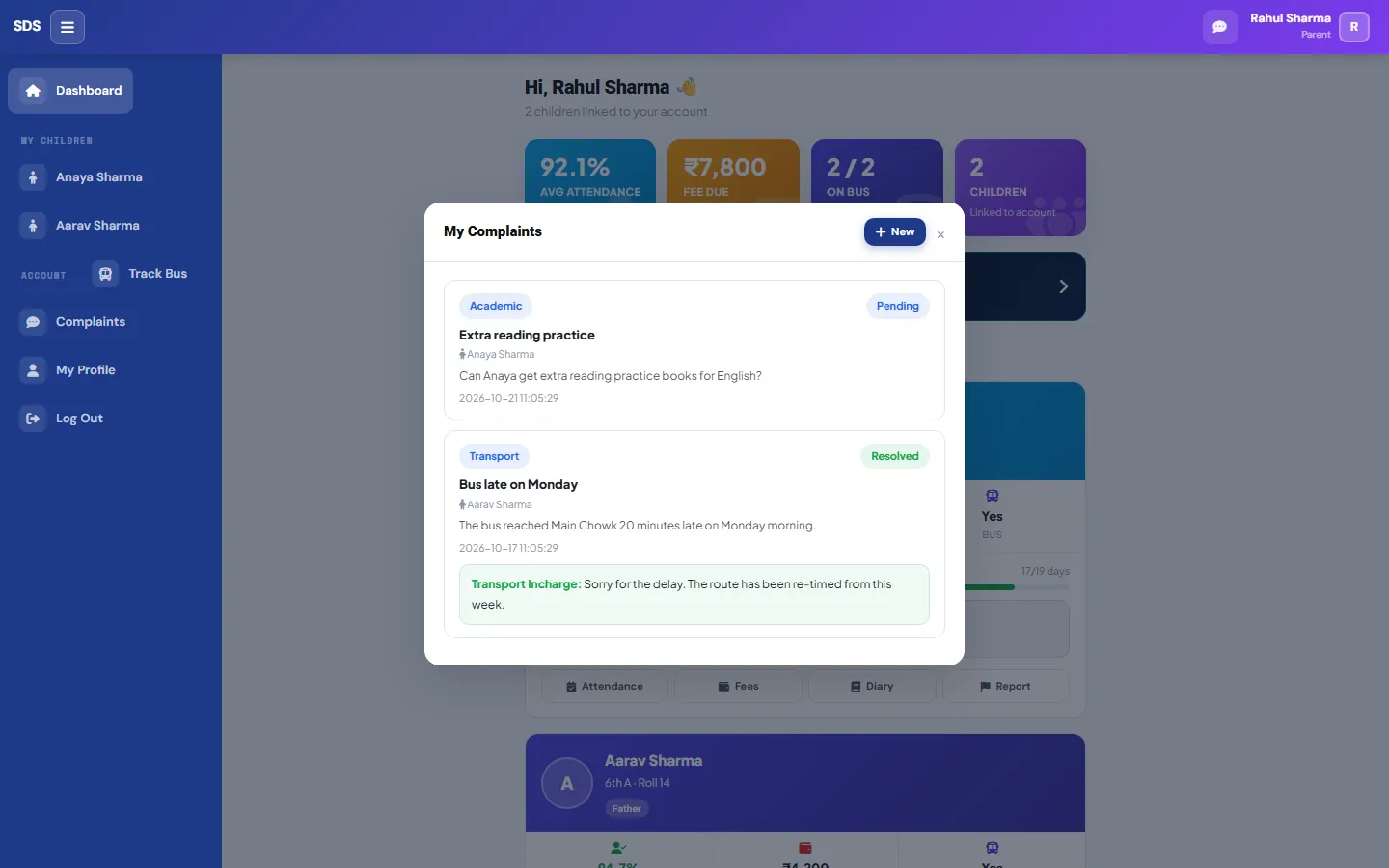
Complaints lists what you have sent with its status, Pending or Resolved, and the school’s reply underneath. Tap + New to send another.
Keep your details up to date
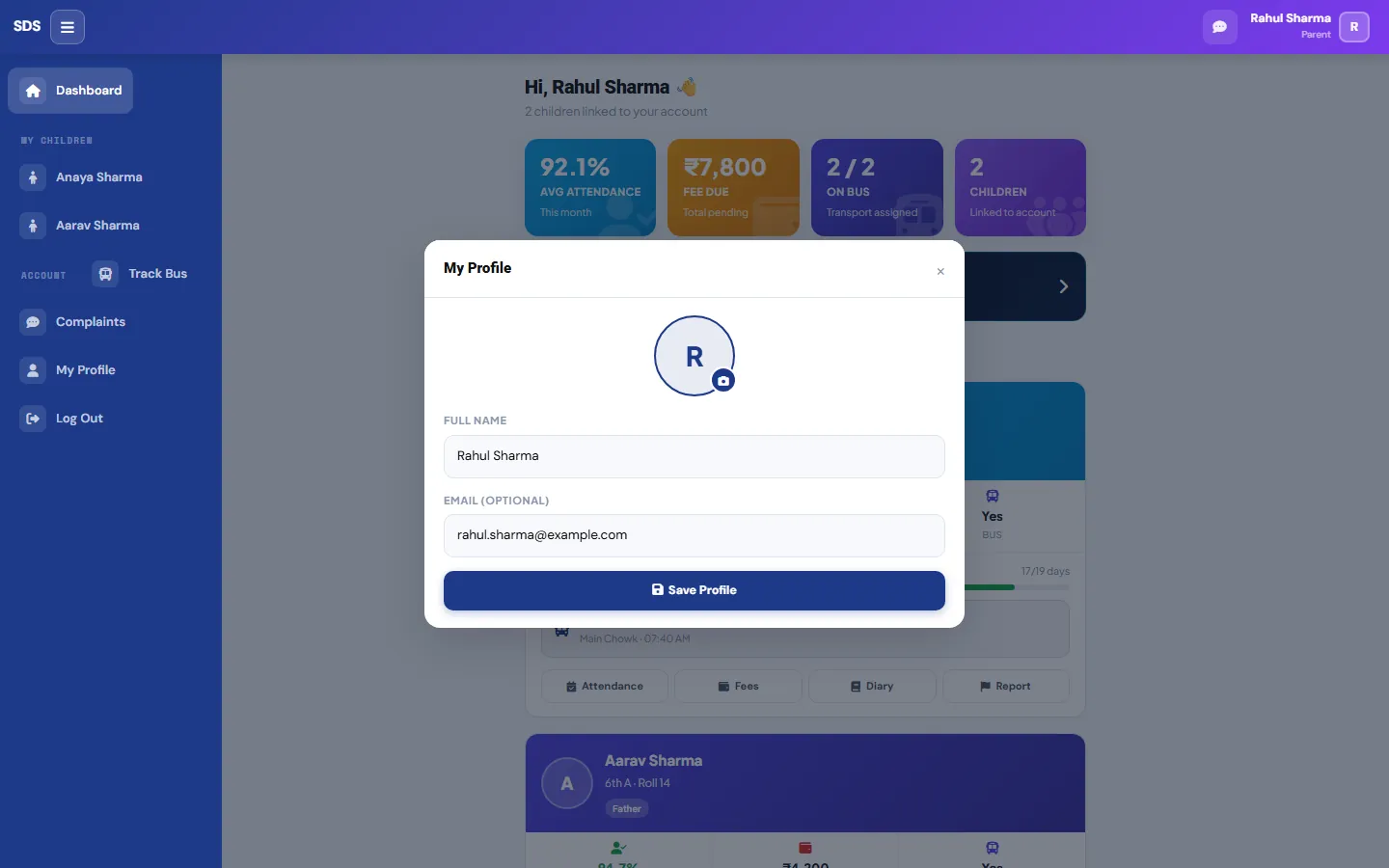
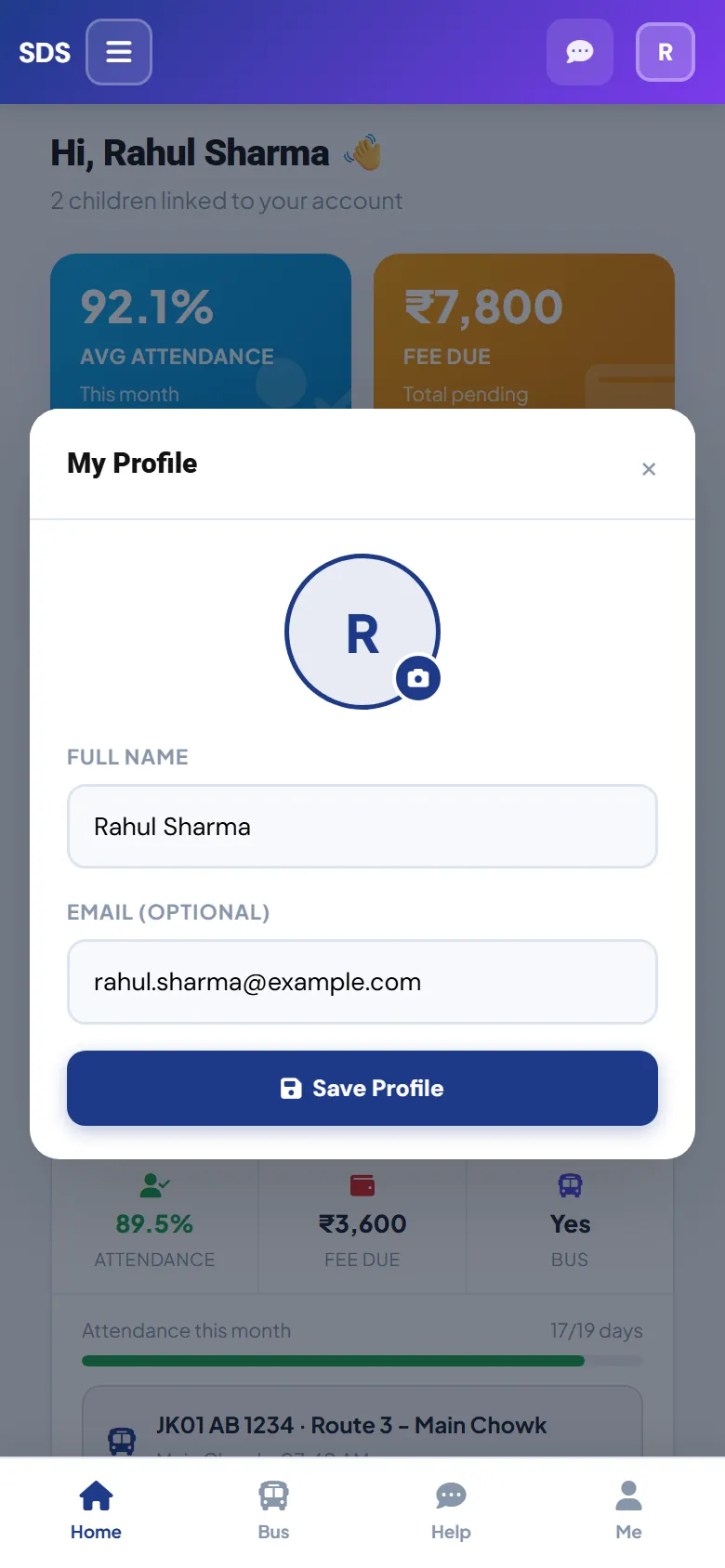
My Profile lets you change your name, add an e-mail and upload a photo.
To change your phone number, ask the school office. It is your login.